Installing Jenkins on Ubuntu 22.04 Server: A Detailed Guide
This guide details the steps to install Jenkins on an Ubuntu server. First, update system packages and install OpenJDK 17. Next, add the official Jenkins repository and update the package index, then install Jenkins.
Installing Jenkins on an Ubuntu server can be accomplished through the following steps:
Update System Packages
First, update your package index:
sudo apt updateInstall JDK
Jenkins requires a Java environment to run. You can install OpenJDK 17, which is currently the recommended version:
sudo apt install fontconfig openjdk-17-jreAfter installation, check the version:
java -version
Add Jenkins Repository
Add the official Jenkins repository to your package manager.First command:
curl -fsSL https://pkg.jenkins.io/debian-stable/jenkins.io-2023.key | sudo tee /usr/share/keyrings/jenkins-keyring.asc > /dev/nullSecond command:
echo deb [signed-by=/usr/share/keyrings/jenkins-keyring.asc] https://pkg.jenkins.io/debian-stable binary/ | sudo tee /etc/apt/sources.list.d/jenkins.list > /dev/nullAvoid using other signing keys and package repositories (many tutorials lead to errors), as updating the package index may result in errors like:
E: The repository 'https://pkg.jenkins.io/debian-stable binary/ Release' is not signed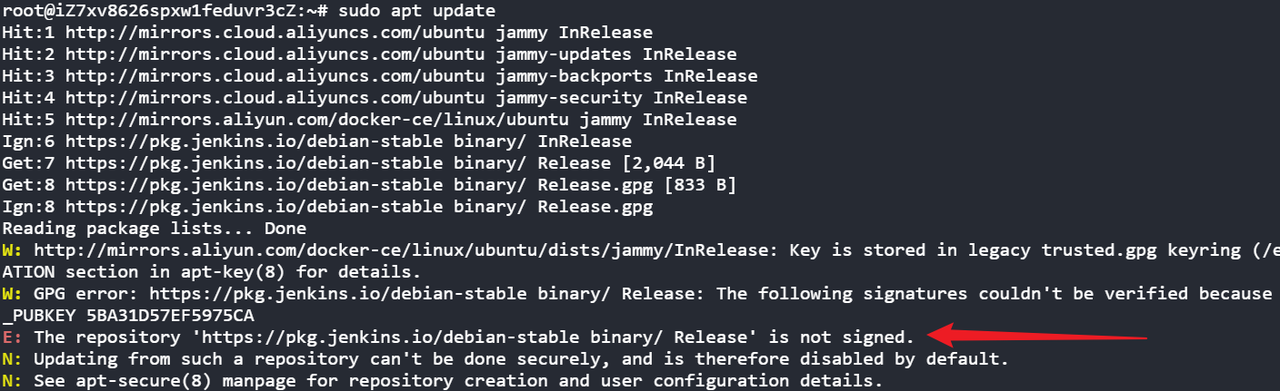
Installing Jenkins may also prompt errors such as:
E: Package 'jenkins' has no installation candidate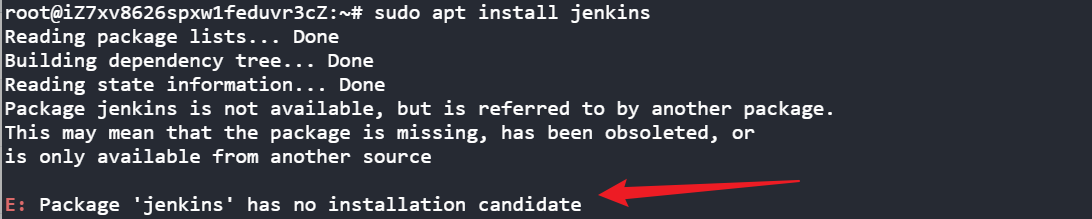
For detailed explanations, refer to: https://www.jenkins.io/blog/2023/03/27/repository-signing-keys-changing/
Install Jenkins
First, update the package index again:
sudo apt updateThen install Jenkins:
sudo apt install jenkins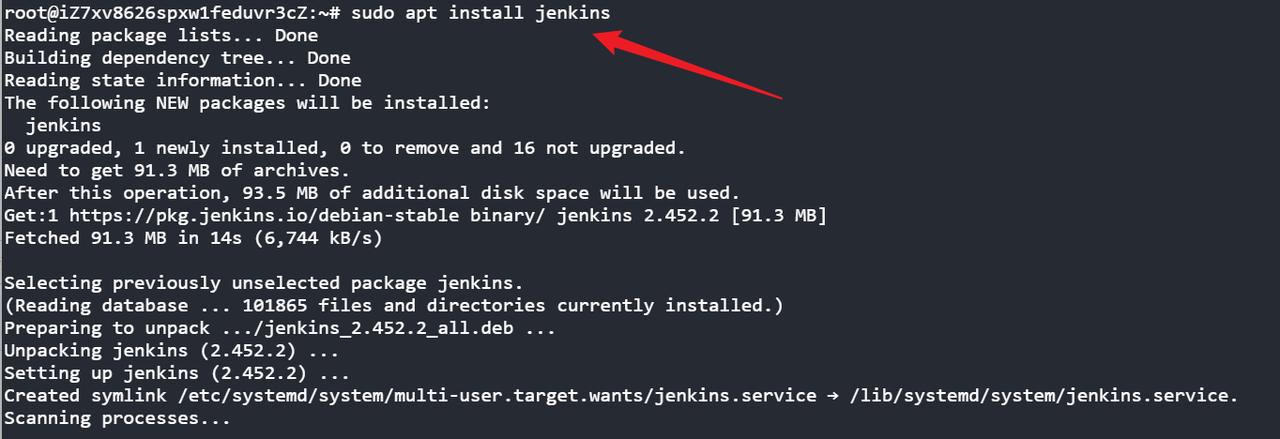
Check if Jenkins is installed successfully:
sudo systemctl status jenkins
Start and Enable Jenkins Service
Start the Jenkins service and enable it to start on boot:
sudo systemctl start jenkins
sudo systemctl enable jenkins
Open Firewall Port
Jenkins runs on port 8080 by default. Ensure the firewall allows traffic through this port:
sudo ufw allow 8080
sudo ufw status
Access Jenkins
Open a browser and visit http://your_public_IP:8080. You will see a Jenkins unlock page.
Unlock Jenkins
The first time you access Jenkins, you need to provide an unlock password. You can find this password with the following command:
sudo cat /var/lib/jenkins/secrets/initialAdminPasswordCopy the displayed password and paste it into the Jenkins unlock page in your browser.
Complete Installation
Follow the Jenkins installation wizard to complete the remaining steps. This includes installing recommended plugins and creating the initial administrator user. With this, you have successfully installed and run Jenkins on your Ubuntu server. You can further configure and manage your Jenkins instance through the Jenkins web interface.
Uninstall Jenkins
Use apt or yum (depending on your system) to remove the Jenkins package:
sudo apt-get remove --purge jenkins
# Or (if using yum)
# sudo yum remove jenkins
Remove Jenkins Configuration and Data Files
Delete Jenkins configuration and data folders (typically located in /var/lib/jenkins and /etc/jenkins, paths may vary):
sudo rm -rf /var/lib/jenkins
sudo rm -rf /etc/jenkins
sudo rm -rf /var/log/jenkins
sudo rm -rf /usr/share/jenkins
Remove JDK
List installed JDK versions:
sudo update-alternatives --config javaCheck installed OpenJDK packages:
dpkg --list | grep openjdk
Remove OpenJDK packages, for example:
sudo apt-get remove --purge openjdk-11-jdk-headless
sudo apt-get remove --purge openjdk-11-jre-headless
Summary
This guide details the steps to install Jenkins on an Ubuntu server. First, update system packages and install OpenJDK 17. Next, add the official Jenkins repository and update the package index, then install Jenkins. After installation, start and enable the Jenkins service, open firewall port 8080, and access the Jenkins unlock page. Follow the installation wizard to complete plugin installation and administrator creation. Lastly, instructions on how to uninstall Jenkins and its related configuration and data files are provided.
 Autumn
Learn more: